 TideTone
Handpan score sharing: send a code, import and practise
Share playable, editable handpan scores with TideTone. Learn sender and recipient access, the six-character code workflow, and how to listen before practising.
First: are you sending or receiving?
A sharing code lets another person open a playable, editable score in TideTone without re-entering a screenshot. Start with a small passage: listen together, then discuss what to keep or change.
- Sending: creating a cloud sharing code requires sign-in and active Pro access.
- Receiving: importing a code from the library requires sign-in, but not Pro.
- Connection: generation and download require internet access. A code is neither an image nor an audio file.
A teacher with Pro can send a score to a student without Pro. Other features still follow the recipient’s own account access.
Sender: create a code from your score
- Check the score: open it and audition the beginning. Confirm its title, scale and tempo. Give it a recognizable name and save.
- Open sharing: tap the orange square-and-up-arrow button near the top of the editor.
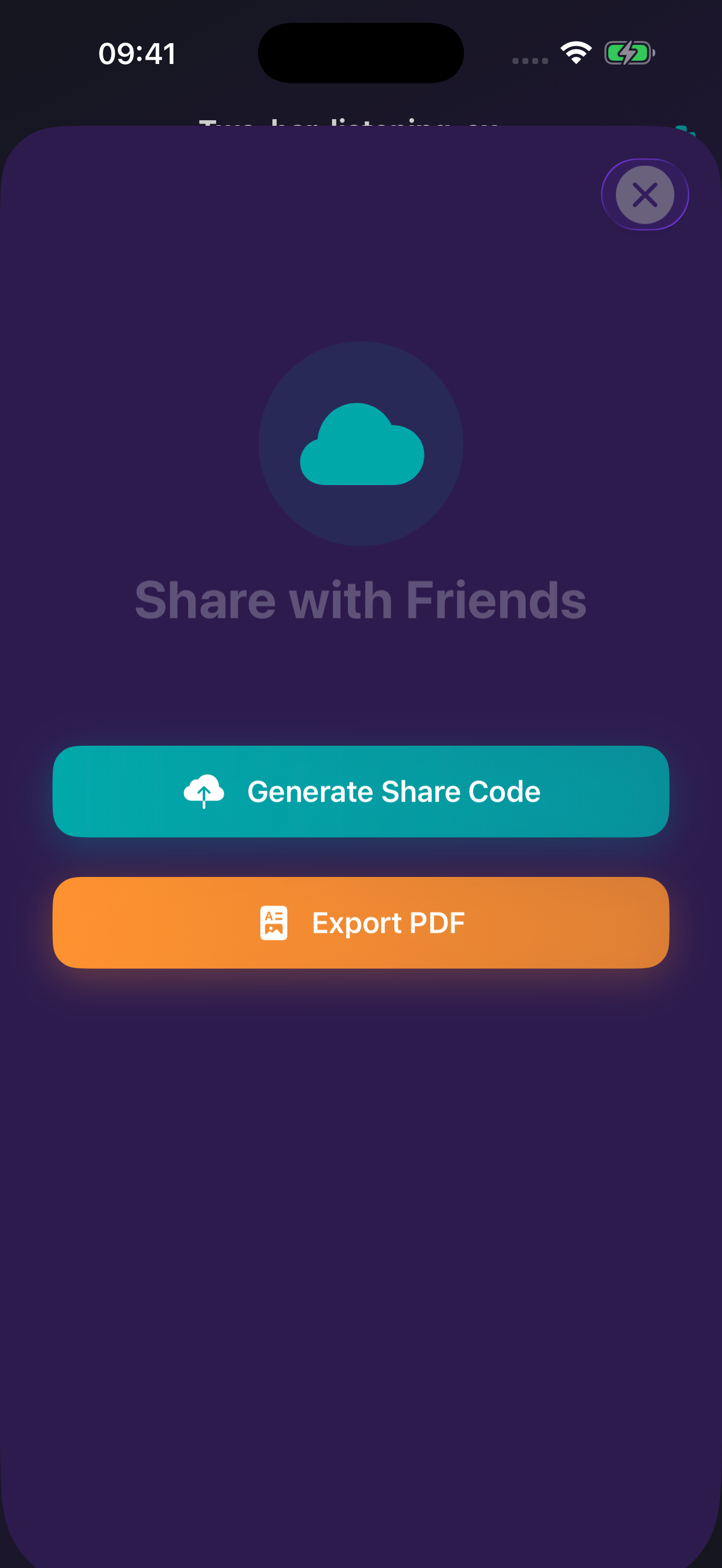
- Generate: tap Generate Share Code. Sign in if prompted. Without Pro, an upgrade screen appears. A successful upload displays a six-character code.
- Copy: tap Copy Share Code and give the recipient its title, scale and a short practice suggestion.
Do not assume an existing code updates when you edit the local score. Generate a code for the new version and tell the recipient what changed.
Separate recordings of the same original Two-bar-listening-exercise: A3, C4, no new attack, A3 / A3, C4, no new attack, C4. D Kurd 10, 4/4, 90 BPM. Checked 2026-10-09 using local DEBUG Pro. No purchase, separate recipient account or second device was tested. This identifier already existed locally: successful import did not create a duplicate copy.
The visible code is a temporary example, not a permanent free score. Request a fresh code from your sender. Current server retention is 7 days; import promptly and keep your work locally.
Recipient: where do I enter the code?
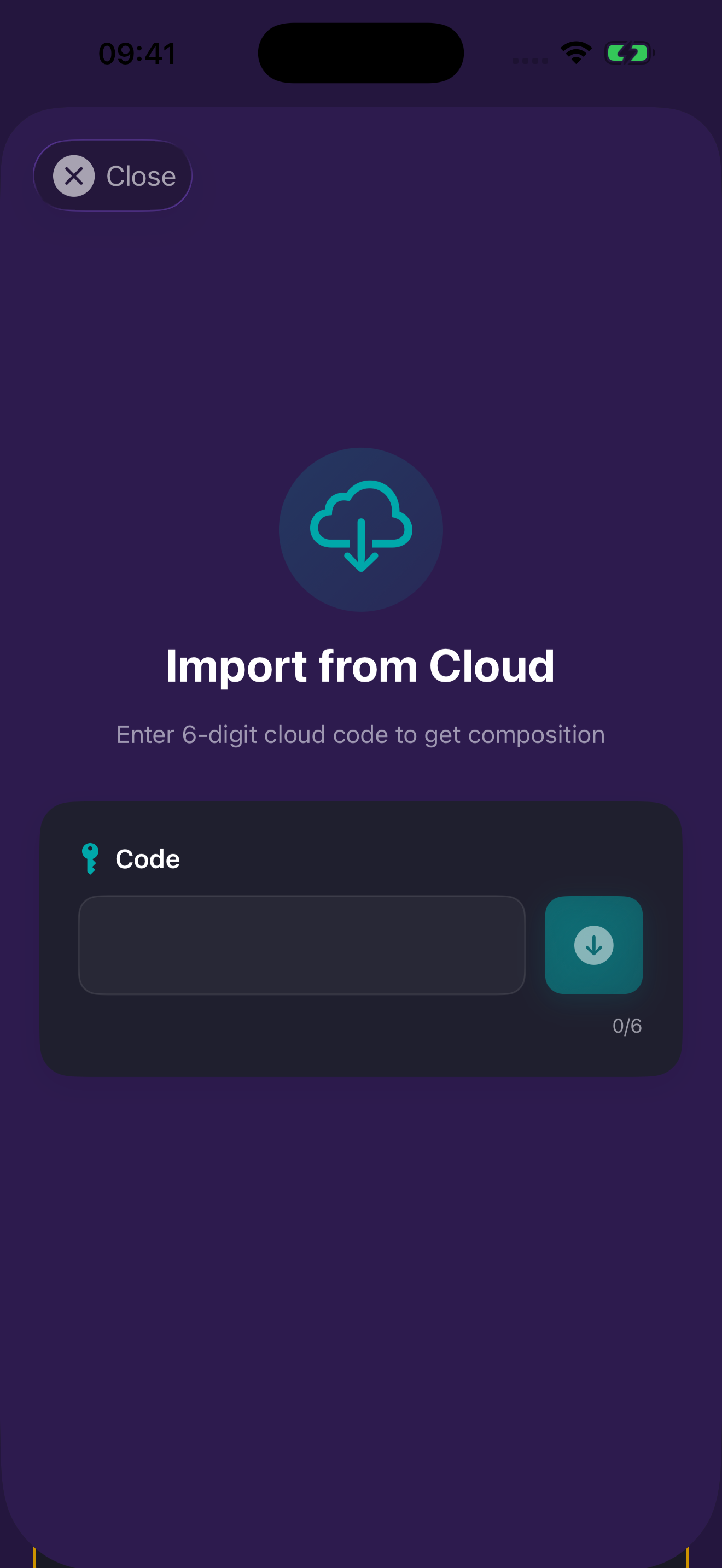
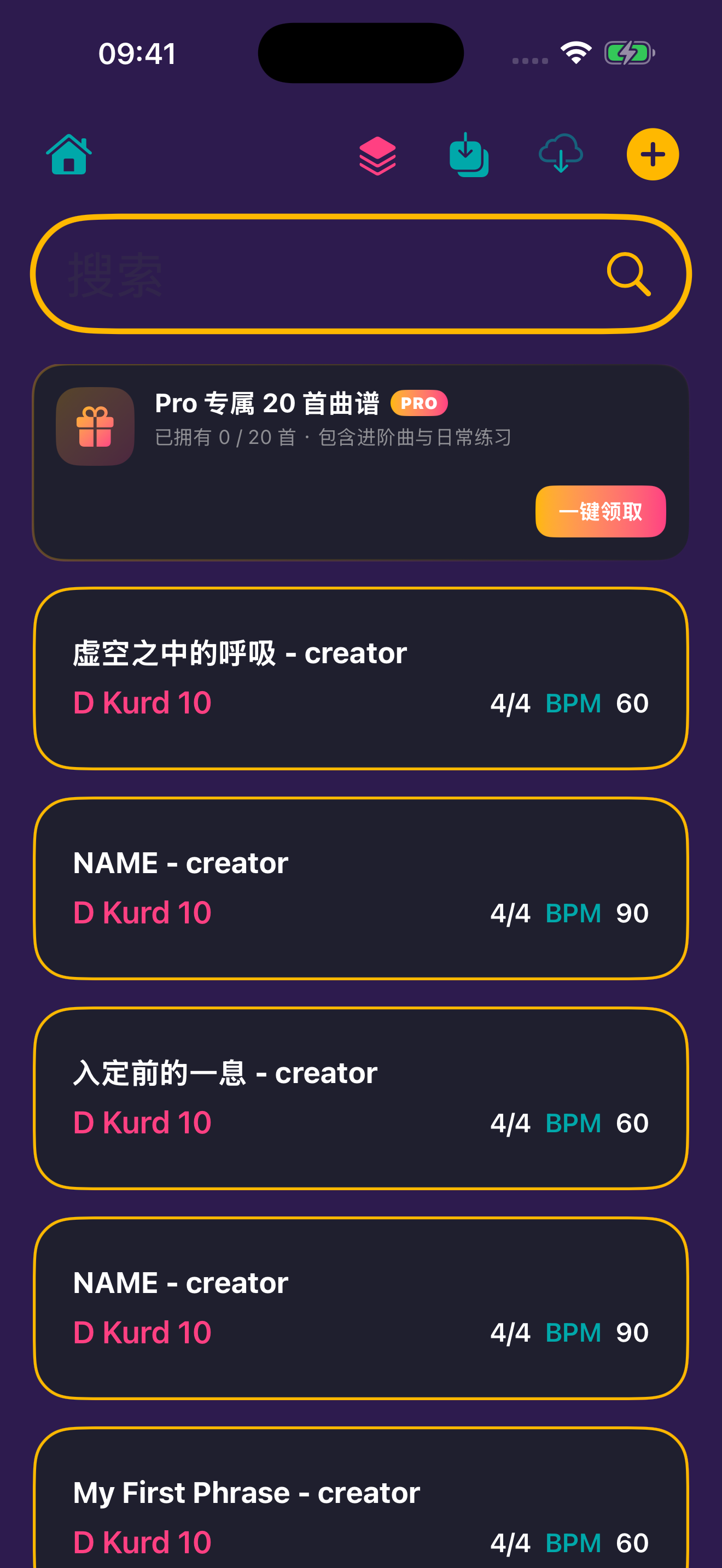
- Open the library and sign in. Tap the teal down-arrow-into-tray import button at the top. This is different from the nearby cloud-sync button.
- Enter only the six-character code. If someone sends a full sharing message, extract just the code. For the cloud short-code workflow on this page, enter only its six characters; pasting the whole message can retain the wrong text.
- Tap the download arrow beside Code. It becomes available at six characters. A successful download closes the panel and saves to the library. Look for the import-success message, then find the title.
- Listen first. Open the score and check its title, scale and opening phrase against the sender’s description before editing or practising.
Before importing again: the same score keeps its identifier, so re-importing may replace your existing local version. Preserve your own edits first; do not assume a new copy will always be created.
Separate recordings of the same original Two-bar-listening-exercise: A3, C4, no new attack, A3 / A3, C4, no new attack, C4. D Kurd 10, 4/4, 90 BPM. Checked 2026-10-09 using local DEBUG Pro. No purchase, separate recipient account or second device was tested. This identifier already existed locally: successful import did not create a duplicate copy.
The visible code is a temporary example, not a permanent free score. Request a fresh code from your sender. Current server retention is 7 days; import promptly and keep your work locally.
After importing, listen before playing
Receiving notation does not mean you already know how it should sound. Listen once or twice without playing. Find a phrase whose contour you remember, then follow the highlighted grid: horizontal position shows when an attack occurs, and the label identifies the note.
- First listen: notice busy moments and spaces.
- Then follow the highlights and find that phrase in the grid.
- Lower BPM and enable the count-in if needed. Follow one part first.
- Learn one short passage before moving on; finishing the whole piece is optional.
The sound may differ: a code carries the score and scale, but does not switch or unlock the recipient’s sound pack. To compare Haopengyou D Kurd 10, select that pack if available in your app. Different timbre does not necessarily mean import failed.
Watch tempo and count-in with real app audio · Switch position, Jianpu and pitch-name views
Troubleshoot by what you see
- Why does Generate open Pro?
- Creating a code requires Pro. Recipients should use the library’s import entry; receiving alone does not require that purchase.
- Why is Download disabled?
- Check that the counter reads 6/6 and that you did not include spaces or explanatory text.
- Code not found or expired?
- Ask the sender to check the code or generate another. The current sharing service retains scores for 7 days (confirmed by the developer on 2026-10-09). Ask for a new code after expiry; a mistyped code or a connection problem can also cause failure.
- Upload or download failed?
- Check connectivity and retry. If it persists, send support your app version, steps and error text, without passwords.
- The panel closed, but I cannot find the score.
- Clear library search filters and look by title. Check whether an existing score was replaced. A closed panel alone does not prove saving succeeded.
- I have only an image or PDF.
- Use the separate numbered-notation import workflow.
Give the learner more than a code
Include one concrete suggestion, for example: “D Kurd 10. Listen to bars 1–2 first, then slow down until you can follow comfortably. Work only on the melody today.” Add a version label to the title so both people know which score they have.
A single-score code sends one work; packs organize several exercises. Sharing is also different from cloud backup. Share only work you are entitled to distribute and retain appropriate attribution.
Workflow checked 2026-10-04. Recordings show actual cloud generation, copying, import and playback using debug Pro access; no purchase is demonstrated. Current app access and prompts take precedence.
Codes last 7 days: import promptly; do not use them as a lasting backup
The current score-sharing server retains uploads for 7 days. Include the generation date and ask recipients to import promptly, then open and audition the score in their local library. A code in a chat, bookmark or tutorial recording is not a permanent score resource.
A score already imported and saved locally does not depend on the old code remaining valid. After expiry, that code cannot retrieve a fresh download; the sender needs to generate another from the retained score. Save the work and, where needed, keep an original restorable PDF for long-term retention. The server retention period was confirmed by the developer on 2026-10-09; a seven-day expiry test has not been completed.
How do we confirm it is the intended score?
Six characters does not mean six numerals: a code may contain letters. Use the sender’s newly generated code, not the example visible in a tutorial recording. Copy Share Code adds explanatory text; for manual entry, extract only the six-character cloud code.
After download, check title and version, scale, meter and tempo, and the opening melody. Listen before practising or editing. A closed panel does not replace library and playback checks.
This page focuses on six-character cloud codes. The app also accepts the separate long data-code format beginning TC1_. Do not truncate that format to six characters. Ask the sender which format they supplied if unsure.
See the current English buttons
Send several exercises together: when to use a pack?
A single-score code sends one work. A pack puts several selected scores behind one six-character code, so the student can import them together. Use it for a lesson, variations on one idea, or a few short pieces with increasing difficulty.
Start with two or three: one for pulse, one for melody, and one to adapt freely. A small set makes today’s task clearer. A teacher-created pack is separate from the library’s “20 Pro exclusive scores.”
- Creating a pack requires Pro. Generation and download require internet access.
- Students sign in to import from the library; receiving itself does not require Pro.
- A pack is not a combined PDF and does not unlock the recipient’s Pro features or sound packs.
Teacher: name, select, then generate a code
- Prepare the scores: save them in the library, use clear titles, and check scale and BPM. Leave unfinished or unnamed drafts out.
- Open packing: tap the pink stacked-layers icon at the top of the library. It is different from the teal import button beside it.
- Name the pack: include topic, scale and version, such as “D Kurd 10 · Week 1 · v1.”
- Select scores: tap the checkboxes and check the selected count. Generate is unavailable with an empty name or no selected score.
- Generate and copy: wait for the success screen, then copy the six-character code. Send a title list and practice instructions with it.
The clip begins with the pack name filled in, then selects two existing demo scores and uploads them. The NAME drafts remain unselected.
Recorded on 10 October 2026. Listening practice EN contains only Two-bar-listening-exercise (90 BPM) and A-B Practice JA (60 BPM), both in D Kurd 10. The selection clip starts after the pack name has been entered. The App reports “Successfully imported 2 scores”.
This demonstration uses Debug Pro and imports into the same demo library. Two successful imports do not mean two additional copies were created. It does not demonstrate another account, another device, non-Pro reception or a purchase. Unrelated personal scores are hidden.
The code shown is a temporary demonstration, not a permanent free-resource link. Check titles and BPM after importing, and ask the sender which exercise to start with. Do not use a sharing code as long-term backup.
Student: one entry imports several scores
- Sign in, open the library, and tap the teal down-arrow-into-tray button.
- Enter the teacher’s six-character code and tap Download. The app identifies a score or pack automatically; no separate pack-download button is needed.
- Wait for import success, check the count, then find the titles supplied by the teacher.
- Open the assigned first score and listen before following the grid.
This saves the pack’s scores in a batch: the current library entry does not offer a second screen for choosing only some scores. Do not expect an automatic course folder. The recording imports the newly created two-score pack into the same demo library and shows real feedback; it is not a test between two accounts.
Re-importing the same work may update an existing local version. Preserve your edits first; do not assume another import always creates a duplicate.
Recorded on 10 October 2026. Listening practice EN contains only Two-bar-listening-exercise (90 BPM) and A-B Practice JA (60 BPM), both in D Kurd 10. The selection clip starts after the pack name has been entered. The App reports “Successfully imported 2 scores”.
This demonstration uses Debug Pro and imports into the same demo library. Two successful imports do not mean two additional copies were created. It does not demonstrate another account, another device, non-Pro reception or a purchase. Unrelated personal scores are hidden.
The code shown is a temporary demonstration, not a permanent free-resource link. Check titles and BPM after importing, and ask the sender which exercise to start with. Do not use a sharing code as long-term backup.
Turn a pack into a manageable practice session
A pile of scores can still leave a student unsure where to begin. Include an instruction like this with the code:
Today, practise only bars 1–2 of the first score. Listen twice and notice the melodic contour, then slow down until you can follow comfortably. The second piece is optional; you do not need to finish it today.
Listen in TideTone first, then follow the grid highlights to connect the sound with each attack. Lower the tempo, use a count-in, and follow one part if needed. “Play one phrase comfortably” is a useful goal without first completing a theory course.
Watch tempo and count-in with real audio. Add a PDF for written annotations.
New versions and import problems
- Does an old code update after I edit a score?
- Do not assume it does. Check the revised work, generate a new pack code and identify the version for students.
- Does checkbox order set lesson order?
- Do not rely on selection order. Send an explicit title sequence; use 01 and 02 in titles when helpful.
- Fewer imports than expected?
- Check each title and existing local copies. The success message counts successful saves. Ask the teacher to verify pack contents instead of repeatedly importing.
- Disabled button or failed generation?
- Check the name, selected count and Pro access. For downloads, check that the code has exactly six characters, then check connectivity. Retain the error text and steps if it persists.
Distribute only scores you are entitled to share. A pack distributes practice material; it is not cloud backup. Workflow checked 2026-10-04 using existing debug Pro access.
Saving, syncing and backup: three different jobs
Opening a score in your library does not prove it is in the cloud. Local saving keeps it on this device; sync exchanges updates between eligible devices; an independent backup is a separate copy you retain and verify. A sharing code distributes a score, not a continuous backup.
- Local saving: free users can save scores, with no current local score-count limit. Reopen the score from the library and check your latest edit.
- Cloud sync: requires TideTone sign-in, active Pro, an available iCloud account and connectivity. App sign-in and system iCloud sign-in are separate.
- An extra copy: Pro can export an original PDF to a separate location. Current native PDFs contain supported score data for reimport, but not all account, history or sound-pack settings.
Save one score locally before checking sync. Repeatedly importing a sharing code is not a backup routine.
Where is sync, and how do I check completion?
- Confirm iCloud is available in system settings, then sign in to the correct TideTone account and check Pro access.
- Open the library and tap the cloud-with-down-arrow between the teal import button and yellow plus. The adjacent tray arrow imports sharing codes; it is not sync.
- Wait for the operation to finish. The button is disabled during sync, and is dimmed without sign-in or Pro.
- In the current version the cloud briefly turns green after the sync call completes normally; failures display an error. A return to the normal color does not mean no sync occurred. Do not judge every score solely from this icon.
- Before continuing on another device, verify the score title, bars and latest edit there.
Moving from iPhone to iPad: verify one score first
Use the same TideTone account and the same system iCloud account on both devices. Owning both devices does not automatically align these accounts.
- Save on the original device, reopen the score, and check your latest edited bar.
- Complete sync online there. Resolve errors or pending work before switching devices.
- On the destination device, sign in to the matching accounts and sync from the library.
- Find the score, check the edited notes, BPM and bar count, then audition the opening.
- Continue editing after verification. For a first migration, test with an unimportant exercise before relying on the process for important work.
If a score is missing, clear search filters and check accounts and connectivity first. Do not delete the original data or uninstall the app as a refresh method. Sync can propagate edits and deletions; it is not an archive of every past version.
Edited on both devices? Inspect the conflict first
If the library reports a conflict, compare the versions before choosing. Do not select an option merely to dismiss the warning.
- Keep both: retain separate works when each contains something useful, then compare and organize them.
- Keep local: use this device’s version, potentially discarding differing cloud edits.
- Keep cloud: use the cloud version, potentially replacing differing local edits.
If unsure, keep both and inspect them first. Resolving a conflict does not prove the subsequent upload has completed; check sync again. A simple habit reduces conflicts: save and sync on one device before editing on the other.
Troubleshoot the message while preserving local work
- Cloud button is dimmed?
- Check whether sync is running, TideTone is signed in and Pro is active.
- iCloud not signed in or restricted?
- Check the system iCloud account and availability. Signing into TideTone is not a substitute for iCloud sign-in.
- Not enough storage?
- Distinguish iCloud storage from device storage using the error message, then address the relevant limit.
- Pending sync tasks?
- The round has not fully completed. Stay connected and inspect conflicts or errors; this is not a success message.
- Local save failed, or only a draft was retained?
- Preserve the current content and follow the prompt. A library save, a fallback draft and a successful cloud sync are different states.
- Still missing on another device?
- Check both accounts, clear search, and verify the original device’s latest content and sync messages. Contact support with app version, devices, steps and error text, never passwords.
For important works, also save an original PDF in Files and open it to check. Reprinting or conversion may remove reimport data, so retain the app’s original export.
Checked against current source and the actual entry screen on 2026-10-04. A successful cross-device iCloud workflow has not yet been recorded on physical devices. Test-environment responses are not presented as verification.