 TideTone
Export handpan scores to PDF: save, read and print
Export a TideTone grid score to PDF. Understand Pro access, position labels, saving, and when to use a PDF instead of a sharing code.
Choose: read on paper, or listen and practise?
Use a PDF for a printed score beside your handpan or a worksheet a student can annotate. Use a TideTone sharing code when the recipient needs playback, slower tempo or editing. A PDF does not play audio.
- PDF export: requires Pro in the current app; this entry does not require sign-in.
- Sharing codes: creating one requires sign-in and Pro. Receiving requires sign-in, not Pro.
- For beginners: send a code to build familiarity by listening, then use the PDF to mark tricky passages. Reading and listening can develop together.
Export a score in three actions
- Open the score: audition it and check title, scale, BPM and notes. You are exporting notation, not audio.
- Open Share: tap the orange square-and-up-arrow in the editor, then Export PDF. Without Pro, the purchase screen appears.
- Save the original: wait for the system share sheet, choose Save to Files, select your folder, then Save. Afterwards reopen it from Files or from the app’s PDF import entry to verify the saved copy.
If the PDF button is absent after generating a sharing code, close the sharing panel and reopen it.
Opening is not saving: keep a copy in Files
Export initially creates a temporary file. Seeing the share sheet or opening a reader does not prove it was saved to your chosen folder.
- Choose Save to Files in the system share sheet.
- Select On My iPhone / iPad or an available cloud folder, confirm the filename, and tap Save.
- Open Files, locate it in that folder and open it to verify the saved copy.
To print, look for Print in the reader or system share menu and inspect print preview first. This example uses landscape A4. Fit to the page when using another paper size to avoid clipping. The clip demonstrates preview, not a physical print.
Read the export: start with position labels
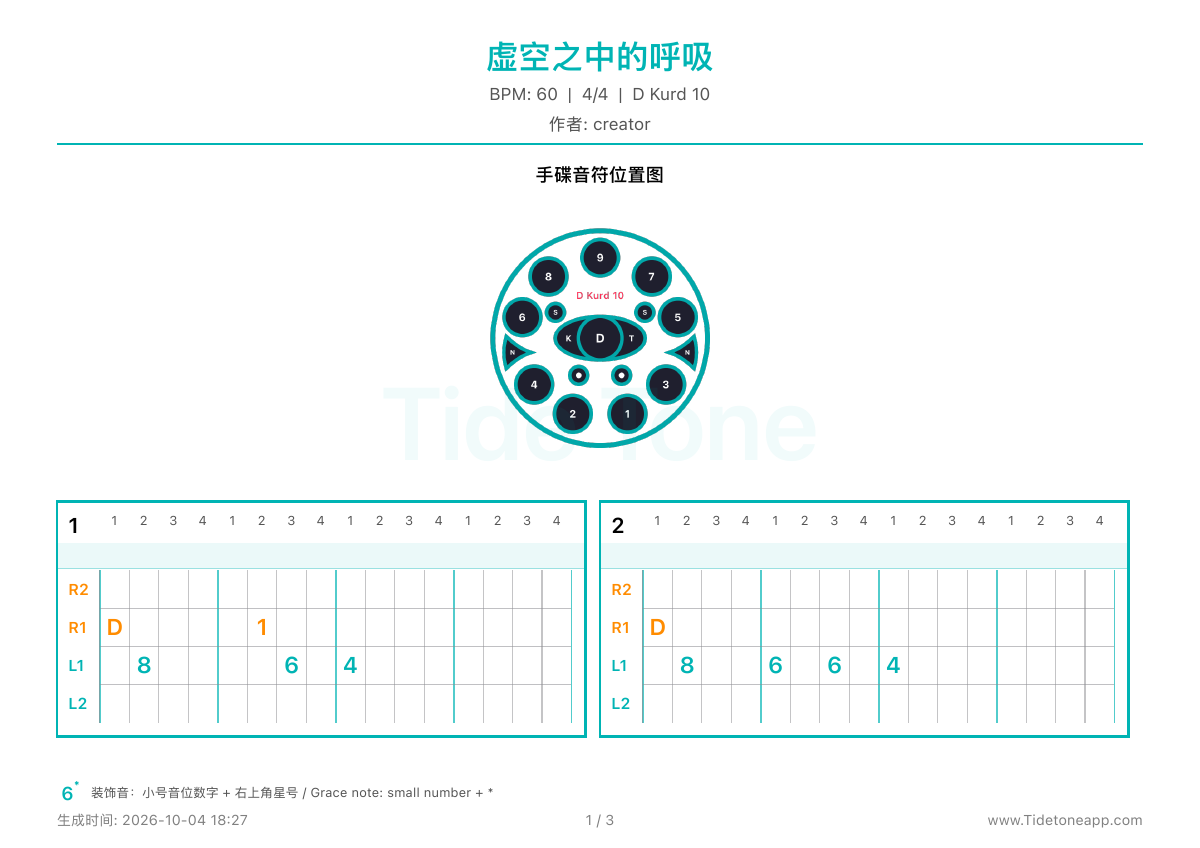
This is the first page actually exported by the app. It uses position notation: D marks the central Ding position, and 1–9 refer to positions on this handpan layout. D is not universally the pitch D, and 1 does not mean Jianpu do. Use the map for the selected scale.
- Check the header: confirm scale and tempo before transferring positions to your own instrument.
- Use the map: match each label to a tone field. Switch the app to pitch names when you need the exact pitch.
- Read time from left to right: horizontal placement indicates an attack. An empty cell is not another strike.
- Follow a part: R2, R1, L1 and L2 are track labels. Begin with one part, listening in the app before following the paper.
This eight-bar example has three pages: the map and bars 1–2, then bars 3–6, then bars 7–8. A screenshot of page one is not the complete piece.
Can I import it back later?
There is one Export PDF button. Its current native output includes both visible notation and original score data; you do not choose a second export format. Keep that original file. In the Jianpu screen, tap Import, then PDF Recognition in the Import Score panel. Select the PDF, check its native score preview, and confirm restore. Restoring replaces the current composition: save your current work first.
Not every PDF is recoverable this way. External PDFs, screenshots, older exports or reprinted PDFs may lack that data. Native import restores supported notes, bars and arrangement information, not your account, edit history or local sound-pack selection.
Import uses the score-recognition allowance: currently three uses per month without Pro, unlimited with Pro. For a valid native PDF, the current implementation counts a use when its review opens, even if you cancel before restoring. Learn how to check and correct an import.
Find the saved file from the app
If Recent files is empty or still refreshing, use Browse to open the folder where you saved the PDF. Match its filename and version before restoring. The demonstrated saved copy was checked against the original export, not just the success of tapping Save.
A small restore test you can repeat
- Export and save a short score as its original PDF.
- After saving your work, delete one note from a test copy.
- Import the saved PDF and confirm restore. Check the missing note, tempo, scale and bars, then listen.
Our checked example has three bars, 4/4, 90 BPM and four R1 events. A deleted C4 on beat 2 returns after restore; the A3 harmonic on beat 3 remains. The video plays the opening, not the entire three-bar score.
This verifies this native file, not every external or older PDF. An ordinary printed Jianpu PDF follows recognition and correction instead. Older TideTone grid PDFs without original data cannot be treated as ordinary single-line Jianpu.
Before sending, run a small check
- Open every page and check that the final bars are present and readable.
- Check that the recipient’s handpan has the notes; position labels are not universal.
- Include a small goal, such as “Listen to bars 1–2 and practise only that phrase today.”
- Check arrangement instructions when repeats are used; export does not expand every playback repeat into extra bars.
- Keep the original PDF and distinguish revised versions by filename.
The earlier eight-bar page example was checked on 2026-10-04. English export, saving and native import steps were checked on 2026-10-09 using debug Pro access. If export repeatedly fails, send support your app version, steps and error message.
Continue to sharing codes · tidetoneapp@gmail.com