 TideTone
Your first TideTone grid phrase: select a cell, then a note
No Jianpu needed. Follow the real app recording: select a grid time position, tap the virtual handpan, then play and save.
In 28 seconds: listen, enter, then practise
A TideTone teaching short with English app UI and captions, using the Good Friend sound. Hear A3, C4, a rest and A3, enter the phrase, then slow from 90 to 60 BPM. Detailed recordings follow below.
YouTube connects only after you load the player. You can also open the video directly or use the on-site demonstrations below.
Hear the phrase before you try to play it
A new score can ask you to decode symbols, find tone fields and keep time all at once. Let TideTone play it first. Hear its shape and pauses, then practise with a sound you can recognize.
Think of listening to a sentence in a new language before repeating it: become familiar with its sound and rhythm first. This is an analogy for the practice sequence, not a promise of faster learning.
A drum-machine-style grid connects when and what to play
- Horizontal position shows time: each bar runs left to right. Follow the beat markers; the default straight 4/4 grid has four cells per beat.
- The cell shows the pitch: A3 and C4 in this example. Follow score and handpan highlights during playback to locate each tone field.
- Listen and check: you can begin before you are fluent in conventional duration symbols. Empty cells have no new attack; resonance may continue through them.
Compared with reading a static score alone, this workflow connects the sound, its time position and the note to play. The grid still uses beats and subdivisions; conventional notation remains useful alongside it.
Try three small steps
- Listen: choose “Hear playback” below without playing along. Notice the beat with no new attack between C4 and the final A3.
- Locate: follow notes on beats 1, 2 and 4. Try speaking or gently tapping the phrase.
- Follow: lower BPM and enable count-in in the app. Practise this phrase before adding another. If it is still difficult, listen again rather than rushing through a whole piece.
1. Open Create and hear two notes
Use an empty composition, D Kurd 10 and 4/4. Use the lower-right notation toggle until the tone fields show pitch names such as A3 and C4, matching this guide. Stay in the composition grid; you do not need the Jianpu editor. Without a cell selected, tap A3 and C4 on the virtual handpan to audition them; this does not enter notes through the grid-selection workflow.
English app UI with English captions. This interface-only clip has no audition audio. Tap Create and check D Kurd 10 at the centre of the handpan. The same lower-right button cycles position, Jianpu and pitch-name displays until A3 and C4 appear. Tap the title and enter a recognizable name.
2. For each note: select a cell, then tap a tone field
Press play for sound. Use the buttons below to revisit each step.
Press play; pause or scrub to inspect each step. Real app audio, pitch-name mode and yellow tap indicators. Enter A3, C4, A3 in R1 cells 1, 5, 13, then replay from the beginning. English app UI and captions, using the 好朋友 handpan samples; press play to hear it.
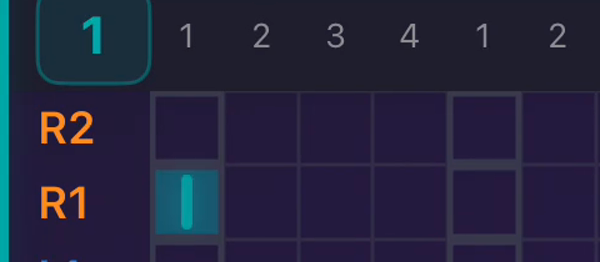
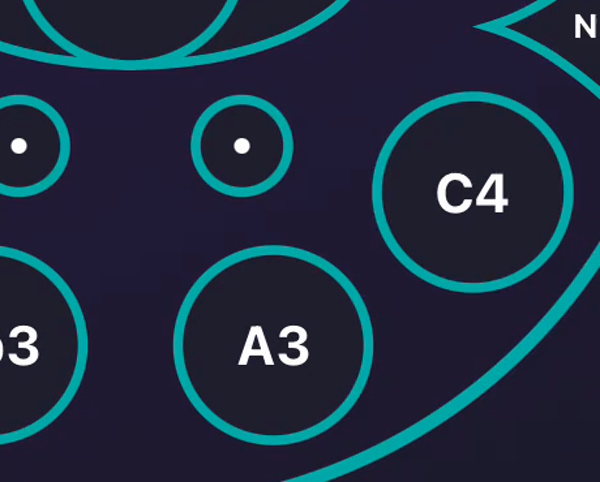
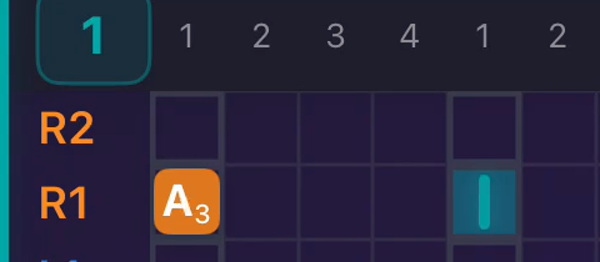
- On one track, select the empty cell at beat 1, then tap A3 (position 1). Entry clears the selection.
- Select the start of beat 2, then tap C4 (position 3). Continuing to tap the handpan alone does not automatically advance grid entry.
- Leave beat 3 empty. Select the start of beat 4, then tap A3.
The default straight 4/4 grid has 16 cells: four per beat. Follow beat labels; adjacent small cells are not whole beats apart. This recording uses cells 1, 5 and 13 for three attacks; check the actual meter and subdivision.
3. Play and compare timing
Play from the composition toolbar: A3, C4, a beat without a new attack, then A3. Resonance can continue through empty cells.
No note appeared? Check cell selection. Too crowded? Check whether you used adjacent subdivisions. Wrong time position? Drag the note; to delete, select it and use the trash control. Change one thing and listen again.
Position, Jianpu and pitch-name modes change the display, not the composition or the required input method.
Fix a note: move, delete, undo
One wrong note does not mean starting over. These separate clips use a single A3 to demonstrate moving, deleting and undoing. Pause or replay each action as needed.
Wrong timing: hold and drag to an empty cell
This moves the same A3 from beat 1 to beat 2. Select A3, then hold it until it lifts, drag to the centre of the empty target cell, then release. The pitch stays A3; its start time changes.
Includes the real audition sound when the move succeeds. Yellow indicators show the touch locations. English app UI with English captions.
An extra note: select it, then delete
Tap A3 and check the selection marker, then tap the trash icon on the right. The cell becomes empty; this does not delete the whole bar. If the trash control is disabled, check your selection.
Selection and deletion do not audition a note in this clip. Yellow indicators show the touch locations. English app UI with English captions.
Deleted by mistake: tap Undo at the top
Immediately tap the curved left arrow at the top. The deleted A3 returns to beat 2. This undoes the last edit; it is not the separate restart-playback control on the left.
The note returns to beat 2. The final replay uses the real 好朋友 handpan samples; hear the pause before A3. Yellow indicators show the touch locations. English app UI with English captions.
Tapped the handpan, but nothing was entered?
In normal editing, with recording and multi-select off, select an empty cell before tapping a tone field. Entry clears the selection, so select a cell again for the next note. Without a selected cell, tapping the handpan only auditions it.
Practise dragging to an empty cell first. Dropping on another note swaps positions; if the app reports a conflict, try an empty location. Check the selection before deleting, especially in multi-select mode. Play after editing to check the resulting timing.
4. Save and reopen
Grid entry is already in the composition; no “convert to grid” step is needed. Save, check the result, then reopen it from the score library and play it. Draft recovery is not confirmation of a formal save.
The demo is already named My First Phrase. Press play; the final replay has sound.
English app UI with English captions and authentic 好朋友 audio. Orange save icon → confirm local save → books icon → reopen the same title → switch to pitch names → replay from the start. Unrelated library entries are hidden.
Tap the title at the top to give your phrase a recognizable name. If reopening shows position numbers, use the lower-right toggle until A3 and C4 appear. Local saving does not confirm cloud sync; check the app message. Draft recovery is separate from verifying a saved score in the library.
5. Slow down and follow the highlights
Listen before playing along. Hear A3, C4, a beat with no new attack, then A3. This real recording changes the same phrase from 90 to 60 BPM and leaves time to prepare.
Press play for real app audio, including the four count-in clicks.
Yellow indicators mark actual taps. Play at 90 BPM, pause and enter 60. Enable the timer icon, then use the circular replay arrow on the left. Playback begins after the countdown. English app UI with English captions and authentic 好朋友 handpan audio.
- Listen: without playing along, notice the three attacks and the empty beat.
- Slow down: pause, tap the BPM number, enter 60 and confirm, or use the plus/minus controls. Choose a comfortable tempo; 60 is only this example. The pitches remain A3 and C4.
- Prepare: enable the timer beside BPM and tap the circular replay arrow. This 4/4 example counts four beats before the first note.
- Follow one phrase: use grid and handpan highlights. Slow down further if finding the notes takes too long; once comfortable, try without watching the highlights.
Count-in, metronome and pause: what changes?
- Count-in provides preparation before starting: four beats at 60 BPM here.
- The metronome is a separate control for beat clicks during playback. It stays off in this example.
- Pause stops temporarily. To hear the phrase again from the beginning, use circular replay, not the Undo arrow. No practice loop is set in this example.
A small check: can you hear the empty third beat, then join comfortably after the count-in? Match a physical handpan by pitch, since position numbers may differ. Without an instrument, try speaking or tapping the rhythm; listening practice does not replace physical touch.
Prefer Jianpu? Use the alternative entry route
The Jianpu editor supports duration-based entry followed by grid conversion. It is not a prerequisite for composing on the grid.
Open the Jianpu-entry guideThis uses manual grid entry and local saving, without AI or recognition quotas. Share codes, cloud sync and PDF export have separate requirements. Free / Pro
Next: duplicate a phrase and change one note
How do I know this worked?
- On R1, the three notes are A3, C4 and A3 at beats 1, 2 and 4.
- Beat 3 has no new attack. A ringing note during that beat is expected, not an extra note.
- You can reopen the named score from the library and hear the same phrase.
If the rhythm feels crowded, return to the beat and cell explanation. If the notes are right but following along is difficult, use slower playback and count-in. You can finish here without adding more notes today.