 TideTone
 AI handpan composer: first ideas, harmony and refinement
Start with three notes, hear a rhythm, generate an editable grid and make it your own. Real app audio and practical exercises for beginners, developing players and experienced musicians.
Choose the problem you have now
You do not need to know how to compose before starting. Choose sounds you like; TideTone provides a draft you can hear and edit. You need not master every setting or learn the entire generated piece at once.
These routes are not ability tests. Explore a few sounds today and accompaniment another day.
Beginner: start with three notes
Prepare an empty exercise
Choose D Kurd 10 and 4/4 in the composition view. Tap the pink sparkle button, then Seed to Song in the Inspiration Assistant. An existing score may open Harmonize by default; check the tab.
- Choose the style first: this example uses Zen. Changing style resets the theme notes and rhythm, so fine-tune them afterwards.
- Clear the theme and choose three notes: D4, F4 and A4. The large digits are Jianpu; the small labels are pitch names. Here they correspond to 6, high 1 and high 3. Follow the pitch labels and your ears; memorizing the digits is optional.
- Hear the rhythm: tap Listen once. Playback moves across the four beat cards and stops after one round. The four cards represent four beats; each has four sixteenth-note subdivisions. Lit dots indicate new attacks. A dark dot has no new attack, although an earlier sound may still ring.
- Start with eight bars: tap Generate Full Arrangement. The editable grid opens and playback starts. Listen before trying to play along.
The three notes guide the theme; they do not restrict every generated note. Other notes from the selected scale, accompaniment and percussion can appear. Your result may differ from the demonstration.
Recorded with Haopengyou D Kurd 10 real samples. Play with sound. Yellow circles mark actual taps. English app controls.
Recorded with Haopengyou D Kurd 10 real samples. Play with sound. Yellow circles mark actual taps. English app controls; the automatically generated draft title remains in Chinese.
After generation, understand a small passage
Pause and choose a bar whose contour you can remember. On a second listen, tap a steady pulse. On a third, watch the highlighted grid cells. Horizontal position shows when an event happens; its label identifies the note. This reduces how much notation decoding and note finding you must do at once.
- Notice busy moments and spaces before worrying about singing every pitch.
- Follow one hand or the melody first; listen to the accompaniment.
- If rushed, lower BPM and enable the count-in. Slower playback does not change pitch.
- Following one or two bars is enough for a first session. Save with a memorable name.
Position numbers, Jianpu and pitch names are different views. Switch to pitch names to follow D4-style labels. Position 1 is not Jianpu 1. The generation clip starts in position notation, then switches to pitch names before replay; the assistant uses Jianpu with small pitch-name labels.
Playback, tempo and count-in · Switch the three notation views
Developing: shape the draft around your intention
Set a concrete intention, such as “a quiet first phrase and a slightly lifted answer.” It is easier to judge than “make it better.” Save the original and change one factor at a time.
Exercise 1: change only the ending
Keep the first phrase. Replace the final melody note of the second by selecting its grid cell and tapping a target note area. Listen across the join. Does it answer the first phrase or invite another? Judge it against your intention, not a universal correct answer.
Exercise 2: change only density
If you like the melody but it feels crowded, remove one ornament or accompaniment event and listen again. Do not also change pitch, tempo and style. With a resonant instrument, one fewer new attack can make a meaningful difference.
Try the example below: listen at BPM 60, pause, then select the orange A3 cell in the R1 row on beat 3 of bar 1. Tap the red bin. The blue D4 below it stays in the L1 row. Replay at the same speed: you are comparing one removed accompaniment note, not a tempo change or a new generated piece. If the wrong event disappears, use Undo before continuing. Pause before selecting a grid event; while playback is active, the grid switches to its playback view.
Exercise 3: compare styles fairly
Note your theme and four-beat rhythm before switching style. Restore them afterwards if you want a controlled comparison. Style also sets a generation tempo; bring both versions to the same BPM to focus on their notes and rhythms. Repeatedly choosing another version does not guarantee a completely different result.
Real grid move, delete and undo demos · Develop a question and answer
Recorded with Haopengyou D Kurd 10 real samples. Play with sound. Yellow circles mark actual taps. English app controls; the automatically generated draft title remains in Chinese.
Experienced: compare before applying harmony
Seed to Song builds from theme cues; Harmonize starts from an existing score. Enter a melody in the grid or import and check one, save it, then open harmonization. Start with a one- or two-bar range so changes are easier to hear.
Draft interpretation: how much change to invite
- Preserve: a sensible first try for a defined melody. Later arranging and note processing still occur; it is not a guarantee that every note attribute stays identical.
- Polish: may tidy closely spaced notes and phrase endings in a dense draft. Check intentional details before applying.
- Expand: a more substantial phrase-rewriting route. You need not use it when the existing melody is already right.
Harmony, texture and ornament are different choices
Progression guides bass and chord movement. Texture describes how accompaniment surrounds the melody. Ornament adds passing notes, responses and detail. Begin with Zen Drone and minimal ornament, then try Flowing Fingerstyle. Bossa Nova and Tribal Groove suggest different rhythmic tendencies; neither suits every melody automatically.
- Choose a range, interpretation and one texture, then tap Audition the arrangement (A/B). In this example, use Custom range 1–1, Preserve, Modal Center (Zen Drone), Zen Drone texture and Minimal flourish density. Smart harmony polish stays on.
- A: Original melody plays the melody part. B: Full arrangement includes bass, texture and ornament. A is not a complete playback of every original part.
- Check whether the melody remains recognizable, whether bass distracts and whether endings have space.
- Change one setting and audition again if needed. The audition loops. Tap Pause before deciding. Tap Apply to score and close only when satisfied; preview and application are separate steps. Return to the grid and replay to check what was applied.
The next clip uses a separate hand-entered A3, C4, A3 phrase with Zen Drone and minimal ornament. Compare the same opening; this is not a full playback of the earlier generated piece.
Recorded with Haopengyou D Kurd 10 real samples. Play with sound. Yellow circles mark actual taps. English app controls.
Check the applied grid: the original A3 on beat 1, C4 on beat 2 and A3 on beat 4 remain. This result adds D3 bass on beat 1 and an A3 harmonic event on beat 3. Preserve does not mean that every empty beat stays empty. If you intended silence on beat 3, pause and delete that added event, or try different settings. The clip replays the opening; it does not play the entire applied phrase.
Experienced: refine the problem area
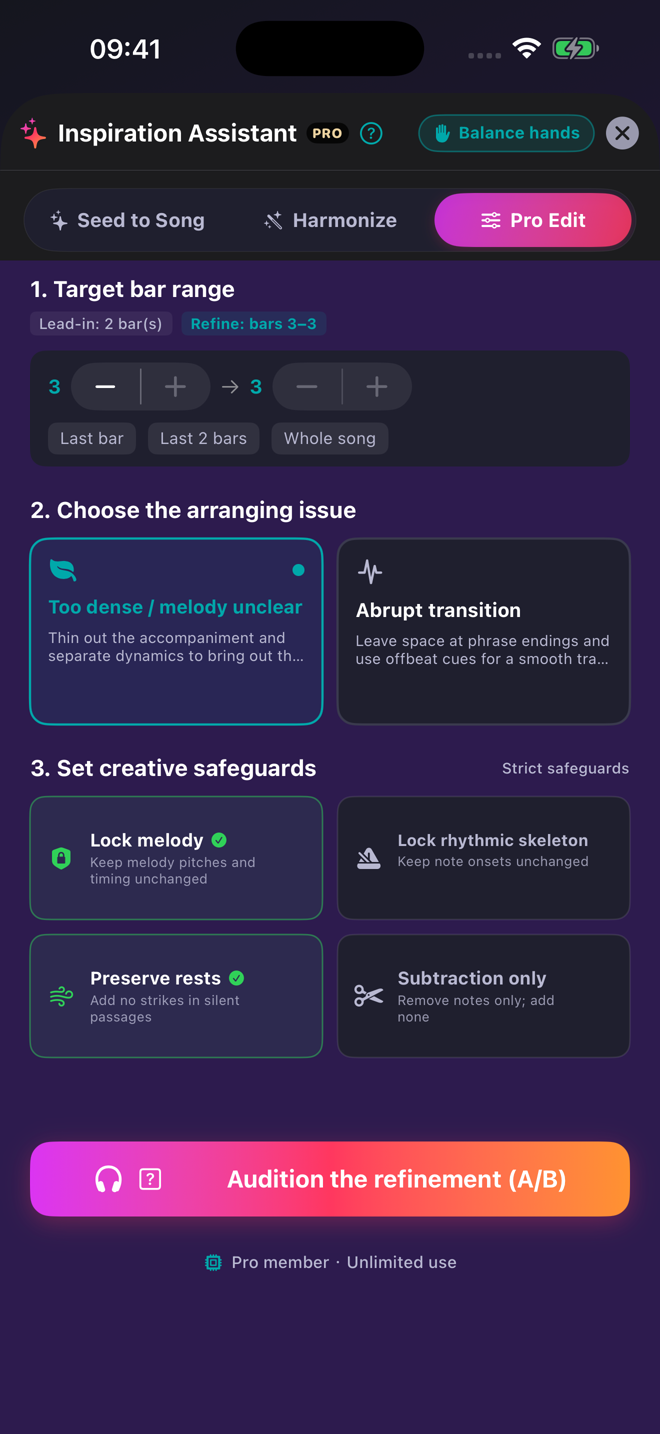
If you like the piece overall, open Pro Edit for local refinement instead of regenerating it. Select the target range and a concrete problem:
- Too dense / melody unclear: compare part separation and dynamic changes. Is the melody easier to follow?
- Abrupt transition: listen across the end of one phrase and the entrance of the next. Available strategies depend on protection settings.
Begin with Lock melody enabled. Use Subtraction only when you want to focus on removing material. Lock rhythmic skeleton restricts rhythmic edits and may reduce the available solutions. Do not treat Preserve rests as an absolute guarantee of preserved silence in this version; check the differences and listen.
- Tap Audition the refinement (A/B) and inspect the proposed options and differences.
- A: Original selection is the original target passage before editing, including accompaniment; B is the chosen refined option. This differs from the melody-only A in harmonization.
- Listen to the neighbouring-bar context, especially entrances and pauses.
- Pause, then use Apply to score and close only if useful. Otherwise leave the preview and make a manual edit; accepting a suggestion is optional.
Melody locking does not freeze every property. Review the grid, parts and physical playability afterwards.
Follow this example: continue from the harmonized phrase above. Set Target bar range to 1-1 and choose Too dense / melody unclear. Enable Lock melody, Preserve rests and Subtraction only; leave Lock rhythmic skeleton off. This example offers Option 1: Separate simultaneous hits and Option 2: Separate dynamics. Availability depends on your score and safeguards.
Recorded with Haopengyou D Kurd 10 real samples. Play with sound. Yellow circles mark actual taps. English app controls.
Read the changes before applying: Option 1 reports Removed 1 and Velocity 1. After applying, the D3 bass on beat 1 is gone; the four R1 events remain, including the harmonic A3 on beat 3. The grid confirms removal, while the preview reports the velocity change. This is a focused accompaniment adjustment, not a new composition. The audition includes the empty next bar as follow-through; the applied replay covers only the opening.
When the result does not feel right
- Why are there more than my three selected notes?
- Theme notes guide generation; a full arrangement develops them and adds parts. For a fixed melody, enter it in the grid and preview harmonization carefully.
- I like the result but cannot play it.
- Learn the sound of two bars, slow them down and follow only the melody. Remove an ornament or accompaniment event. A generated arrangement is not a test of your level.
- Why did my theme change?
- Style selection resets notes and rhythm. Set style first and fine-tune afterwards.
- Why is the harmony not in my grid?
- You may still be previewing A/B. Apply the selected result explicitly when satisfied.
- It keeps getting busier.
- Try minimal ornament or subtraction. Louder and denser do not automatically mean better.
Allowance, saving and the value of Pro
Current Inspiration Generation runs on the device but still uses a membership allowance: three uses per month for non-Pro, unlimited for Pro, subject to the current app display. Local processing does not mean unlimited free use. Harmonization and refinement have separate preview workflows; do not assume every preview consumes a generation use.
Pro supports repeated exploration and editing: more sound ideas for beginners, controlled rhythm and style comparisons for developing players, and a connected audition–arrange–revise workflow for experienced musicians. It does not guarantee that every result fits your intention or replace your judgement when playing.
Save the original before experimenting.Inspiration Generation rebuilds the bars, with a confirmation for existing content and undo support. Start in an empty exercise. In a structured existing piece, also check section ranges and playback order. The result is immediately saved as a local draft; still name it, tap Save and reopen it from the library to verify.
Watch saving and reopening · Free and Pro access
Workflow checked 2026-10-04 using D Kurd 10 in 4/4. Results, interface and available options may change by version.